Showing posts with label tut's. Show all posts

Login Forgotten Windows Password Without Using Any Software

1 comments


Many time we forget our windows  user account password and then we try different software such as oph cracker,ERD commander etc to break into the system.But today TFH will tell a simple trick to login into ur windows user account without using any software


Steps To Login Into Windows User Account


STEP 1. Boot the computer Safe Mode (When starting push F8  five sec)


 STEP 2.Select the Safe mode option.(Now xp load in safe mode)


STEP 3.select yes button


STEP 4. Use the default Administrator account. (Now come your xp safe mood desktop)


STEP 5.Go to the control pannel >User accaunt> Select your account.


STEP 6.You can see left....Change password....Remove password  or create new accaunt.


STEP 7.After finish, you can Restart your computer...

Connect And Browse Internet On PC Via Mobile Phone Without Using PC Suite

0 comments

Hey guys...many of us run internet on the PC via mobile phones using different PC Suites but sometimes we when we are out of our home or office and do not have any access to internet connectivity  then to run internet via mobile phone we require PC suite but if u don not have any access to the internet then how can u download a PC Suite for your mobile


So here TFH present u a amazing trick to connect and browse internet using your mobile phone on your PC by creating a connectivity driver manually in the PC without using PC Suite 

Steps To Connect And Browse Internet Without Using Pc Suite 

STEP 1. Click "Start"STEP 1. Click "Control Panel"STEP 1.  Double Click "Network Connection"


STEP 1.Click "Creat a new connection" in Network Tasks in left side.


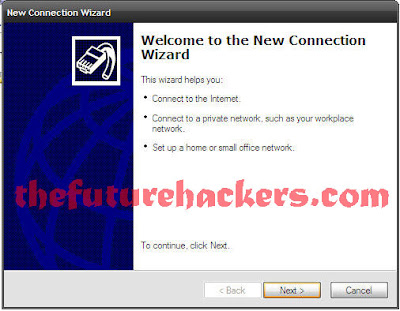
STEP 1. Click "Next"


STEP 1. Select "Connect to the Internet" and Click "Next"


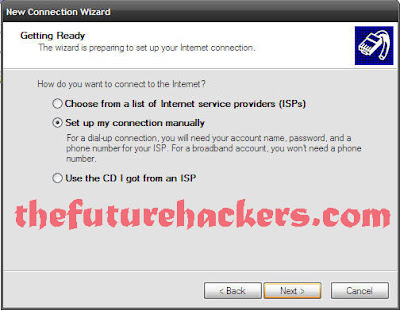
STEP 1. Select "Set up my connection manually" and click "Next"


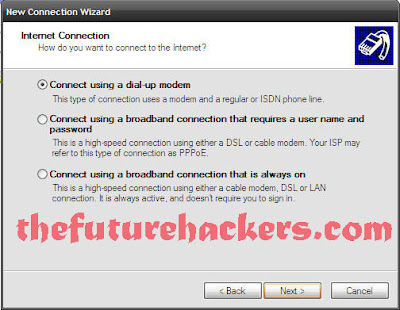
 STEP 1. Select "Connect using a dial-up modem" and click "Next"


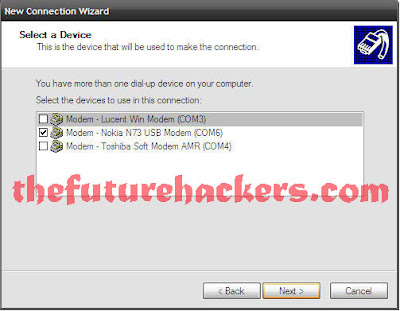
STEP 1. Select your modem here and click "Next"


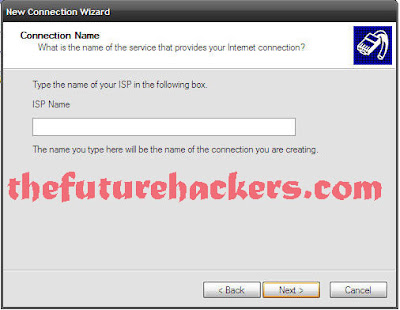
STEP 1.ISP name, keep it blank and click "Next"


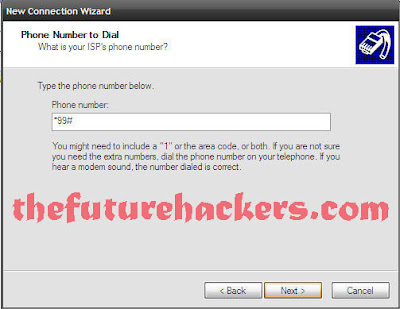
 STEP 1.Type Phone Number *99# and click "Next"


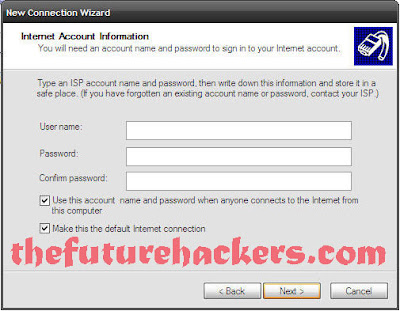
 STEP 1. Keep user name and password blanks and click "Next"


 STEP 1. Select "Add a shortcute to this connection to my desktop" and click "Finish"


STEP 1. Now click "Dial" to connect internet.
STEP 1. Now you can successfully connect internet without PC Suite


Compress Any Image As Small As Possible Without Disturbing Its Image Quality

0 comments

With the daily advancement in the digital cameras,more and more digital cameras with higher capacity to click a pic of bigger pixels are releasing day by day in the market ,thus resulting in the bigger size of a jpeg or image file.According to the TFH a picture of 10 mega pixels can be as much as heavy as 5MB and if u like to upload such kind of 10 picture to a social networking site then it will consume a lots of memory and also waste a lots of time and if u like to compress that pic then it will destroy the image quality ,thus to overcome this TFH introduces u a mind blowing tool to  compress an image size as small as possible without changing image quality  


Steps To Download And Use The Tool


STEP 1.  At first download the software from Here.
STEP 2. Now extract it and Run the software.
STEP 3.Click "OPEN" which picture you want to compressed. 
STEP 4.Select format JPEG, GIF or PNG 
STEP 5.Select Quality, increase/decrease.


STEP 6. Or manually enter a size which you want, like down image.


STEP 7. Check your main Image and compressed image.
STEP 8. And finally click "Save"

U r dun, now check your image.

Entire Control On Remote PC Using Google Chrome

0 comments


You can Download Chrome Remote Desktop extension from the Google Chrome Web Store. The addon will be automatically installed. If you leave the installation page open, you can launch the app right from that page.

HOW TO WORK WITH THIS APPLICATION

1. After installation goto the start page you can see the the application as shown below in your start page. 


2. Click on the Chrome Remote app to open it and to see the window shown below.


3. Click continue and you will asked to allow access to your data. proceed with allowing access.


4. Then it will ask you whether you want to share your own computer to some other system or connect to a shared computer.


5. If you clicked share this computer, then it will generate automatic sharing code.


6. Just send this code to your partner to connect to your system as shown below.


7. Once connected you will see their desktop as seen below and can do whatever you like.


Thats it now you are connected to remote computer.If you found this article useful please pass your comments, all your feedbacks are precious.

Control your computer with sms

0 comments


The most convenient way to control the PC/System, while you are not at home is controlling it by SMS. Not only Home it can be Office also, in a way you can say controlling the computer wirelessly or remotely. This feature can be widely implemented in the country like India where SMS cost are very cheap.

Coming to the point, to control a PC through SMS, yoursystem should be connected to internet. The service I am going to tell is Free of cost, it depends only on your service provider SMS charges. If you have FREE SMS packs of 10 digit mobile number then its totally FREE.
Well the thing we will need to have is twitter.com account, if you dont have one then you can make it on twitter.
Second thing we will need to have ” TweetMyPC ” software which again is a freeware and can be downloaded from here : Click here to download.

TweetMyPC basically runs on the PC all the time to monitor the Twitter updates for the account which you created earlier in background. So, this software should run always on PC. After installing TweetMyPC you will need to configure it correctly.

For that here we go :


> Run TweetMyPC by clicking on its icon from Desktop. It will start running in background, you can view it in system tray :


Right Click on the icon and select Edit Setting. Now a new window will appear asking you username and password of Twitter. Fill in the username and password of the Twitter account Correctly.
> Save and close the window.
Now we are done with this stage of setup.
For updating Twitter status/controlling PC through SMS :
> For completing this step, we will head on to a FREE status update service which is available in India. It is here: http://www.smstweet.in/
> Open the site, and click on ” Sign in with Twitter ” button. Allow the site to access Twitter. And enter you mobile number, through which you are going to update it. This is the one way of registering your mobile, or you can also Setup your mobile by Simply Sending SMS  ‘ TWEET REGISTER  to 09220092200.
Now you are done. Start controlling your system wirelessly. But before that where are the commands which you will use to control your PC ?
List of Commands to Control PC:
>To shut down the PC you will need to send SMS as ” TWEET Shutdown ” to 09220092200 , without quotation.
Here are some more commands, but before sending those you will need to add TWEET word before each command.
I hope you enjoy this post,

Run a Symbian application on your computer

0 comments


 Follow these steps to run a Symbian application on your computer.

  1. Download Symbian SDK from here.( It's a huge file )
  2. Install the SDK and all chaintools included in the package in their default location. 
  3. After all packages are installed, reboot your PC.
  4. Now goto Start » Program files » Nokia Developer Tools » Symbian SDK » Emulator to launch the emulator
  5. Wait for the Emulator to completely load. The Emulator program will look like this when finished loading.


  1. Now inside the Emulator program, goto File » Open and then choose your favorite Symbian applications that you want to run.


  1. All set, install and enjoy your favorite Symbian apps on your PC. If you get error while installing unsigned applications, goto Menu » Settings » Application settings and change value from Signed only to all.

Check CPU Temperature | Main Reasons for Overheating CPU

0 comments


  So there are two basic ways to check the temperature of your system and this is either through the BIOS or using a software application that comes with your motherboard.
Not all motherboards are able to monitor CPU and motherboard temperature's but nowadays most motherboards should be able to.
You are also able to monitor fan speeds in rpm (revolution per minute) and sometimes alter them in order to keep your CPU running at a lower temperature and some motherboards even have a feature that allows you to specify in what temperature range you wish your CPU to run at.

Checking CPU temperature through BIOS So the first way to check your cpu temperature and motherboard temperature (often reffered to as system temperature) you have to enter your systems bios / setup.
Sometimes it can be hard to enter the bios especially when you have a very fast loading computer, so here are the basic steps
1. Upon Startup press DEL to enter SETUP (another name for BIOS) it may differ from motherboard it may be F1 or sometimes F2, if you having trouble seeing what key to press it should tell you at the very bottom of the screen press the PAUSE BREAK key on your keyboard so you pause your screen to take a closer look.
2. Once in BIOS , navigate to your motherboards Power or PC health Menu
3. Here you will see CPU TEMP, SYSTEM TEMP


Checking CPU temperature while in Windows/Linux

So for this method you can check the CD that came with your Motherboard for any software that allows you to check your CPU temperature. For this example I am using an ASUS motherboard which uses the ASUS AI Suite program to monitor CPU temperature, System temp and Clock speeds.
So you can simply install the program from your Motherboard CD, and open the program up which looks like below using the cpu temperature monitoring software


CPU temperature software

So it is common to find your motherboard does not come with a cpu temperature software application but there are a few free ones out there, below is a list of some free cpu temperature software.
Remember it will only work if your motherboard supports cpu temperature monitoring not all motherboards do so you may need to try out a few cpu temperature software programs to see which one works for you.
PCWizard
Everest - Monitor for PC and MAC (worked for my intel cpu temperature monitoring)
SpeedFan

Reasons CPU is overheating

It is not uncommon for a CPU to run hot and usually it is quite an easy fix the following are the most common reasons
1. Thermal Paste underneath your CPU has been applied poorly and not in a nice thing layer, if this is the case you can simply go out and buy some more , its very cheap and look for a thermal paste that comes with a brush to make applying it easier.
2. Your CPU needs a desperate clean and is clogged with dust , this is very common in old houses that get dusty easily, simply clean it out with a brush or can of compressed air. My secret method , cheap method is too use a simple manual foot pump for a swisse ball:P works great and cheaper than buying cans of compressed air.
3. You CPU cooling system has not been fitted properly or is generally poor, this being said the stock fan's that come with CPU's are usually adequate aslong as you aren't overclocking or doing anything extreme.

Signs of High Temperature on CPU

Running your CPU constantly at a high temperature can be very damaging and may have the following implications
- Reduce the Life of your CPU
- Randomly Freezes or Resets your computer
- CPU totally burns out (this would take some time, at very high temps to occur, remember intel cpu temperature can get very hot especially prescott series)
Another great way to monitor your cpu temperature is to include desktop widgets to monitor your CPU temp at all times.
Let me know if you have any questions as I've played around with CPU temperatures a lot overclocked a few CPU's and have setup some watercooling too cool some of the hotter CPU's. 

Use Your USB Drive As Your Windows Password

0 comments

A friend of mine asked on Facebook that "How to use pen drive as the windows password", so for him and for our readers I am writing this post on "How To Use Your USB Drive As Your Windows Password".

So, let's get started..

The first thing we are going to need is : Rohos Logon Key. This is a paid software and comes with a trial version too which will remain active for 15 days. You can purchase it/try it or torrents are always there!But piracy is not recommended at all!


After downloading the software, launch the setup...

The first thing it's going to ask is your language, choose your language and hit ok :


At the next screen simply click on next and then select "I Accept the agreement" and click next :


Then, choose your installation folder or let it be default and click on next :


 And at the next screen check the "Create a desktop icon" and click next :


And at the final screen just click on install and let the installation begin :


After the installation launch the program from the desktop :


Now, to setup the USB drive as your Windows password, firstly insert your USB drive, the program will automatically recognize your USB drive and then click on "Setup USB Key" :


Now, enter your windows password (if any) and then click on "Setup USB Key" :


Done! Now you can login into your Windows by plugging in your USB drive..but there is one more problem, Windows asks for the password and the USB drive both. To disable the password and to keep USB drive only then click on "Options" on the Rohos Logon Key and check the option "Allow Login Only By USB key" and click on OK :


That's it! Now your Windows password is your USB drive! Just restart your PC and see the magic!

Creating A Self Expiring Link

0 comments

 Many of you may be sending some "sensitive" information to your office or any of your family member via email such as bank pin, office reports etc. Sending these types of information openly via email is not secure! So, today I am going to show you how to send these types of sensitive information safely.

So, to do this we are going to take a help of a website, named "oneshares" which allows user to create a secured one time usable link which expires after opening it.

So, all you have to do is visit the website by clicking HERE .


  • After opening the website, click on "Create One Now" button, it will then take you to a new page where you can write the information you want to secure and typing click on "Create Link".


  • It will now give you a link to your information which is accessible only once :


  • Now send this link to the recipient via email or Facebook message but do mention that the link will not be available once opened.The opened link will look like this :


  • and when the user will try to open the link again, then the page will show :